Thursday, 5 December 2013

Quick Sort

Algorithm of Quick Sort

 
QuickSort(a,beg,end)            // a is Array
{
if(beg<end)
{
p=Partition(a,beg,end);         //Calling Procedure to Find Pivot

QuickSort(a,beg,p-1);           //QuickSort Calls Itself
QuickSort(a,p+1,end);           //(Divides the List into two Sub Lists)      
}
}


Procedure to Find Pivot :-

Partition(a,beg,end)
{
p=beg, pivot=a[beg];

for loc=beg+1 to end;
{
if(pivot>a[loc])
{
a[p]=a[loc];
a[loc]=a[p+1];
a[p+1]=pivot;

p=p+1;
}
}
return p;
}


Program in C++ --- Quick Sort


#include<iostream>
#include<conio.h> 
using namespace std;
 int Partition(int a[], int beg, int end)          //Function to Find Pivot Point
{
int p=beg, pivot=a[beg], loc;

for(loc=beg+1;loc<=end;loc++)
{
if(pivot>a[loc])
{
a[p]=a[loc];
a[loc]=a[p+1];
a[p+1]=pivot;

p=p+1;
}
}
return p;
}


void QuickSort(int a[], int beg, int end)
{
if(beg<end)
{
int p=Partition(a,beg,end);                       //Calling Procedure to Find Pivot

QuickSort(a,beg,p-1);                             //Calls Itself (Recursion)
QuickSort(a,p+1,end);                 //Calls Itself (Recursion)
}
}


void main()
{
int a[100],i,n,beg,end;

cout<<"\n------- QUICK SORT -------\n\n";
cout<<"Enter the No. of Elements : ";
cin>>n;

for(i=1;i<=n;i++)
{
cin>>a[i];
}
beg=1;
end=n;

QuickSort(a,beg,end);                           //Calling of QuickSort Function

cout<<"\nAfter Sorting : \n";
for(i=1;i<=n;i++)
{
cout<<a[i]<<endl;
}
getch();
}


Output :-

Quick Sort

Wednesday, 4 December 2013

Top 10 unknown Google tricks

Below is a list of our top ten Google tricks many people who use Google don't know about.

Definitions

Pull up the definition of the word by typing define followed by the word you want the definition for. For example, typing: define bravura would display the definition of that word.

Local search

Visit Google Local enter the area you want to search and the keyword of the place you want to find. For example, typing: restaurant at the above link would display local restaurants.
Phone number lookup

Enter a full phone number with area code to display the name and address associated with that phone number.

Find weather and movies
Type "weather" or "movies" followed by a zip code or city and state to display current weather conditions or movie theaters in your area. For example, typing weather 84101 gives you the current weather conditions for Salt Lake City, UT and the next four days. Typing movies 84101 would give you a link for show times for movies in that area.

Track airline flight and packages
Enter the airline and flight number to display the status of an airline flight and it's arrival time. For example, type: delta 123 to display this flight information if available.

Google can also give a direct link to package tracking information if you enter a UPS, FedEx or USPS tracking number.

Translate

Translate text, a full web page, or search by using the Google Language Tools.

Pages linked to you

See what other web pages are linking to your website or blog by typing link: followed by your URL. For example, typing link:http://www.asimkhan1.blogspot.com displays all pages linking to Our Blog.

Find PDF results only

Add fileType: to your search to display results that only match a certain file type. For example, if you wanted to display PDF results only type: "dell xps" fileType:pdf -- this is a great way to find online manuals.

Calculator

Use the Google Search engine as a calculator by typing a math problem in the search. For example, typing: 100 + 200 would 
display results as 300.

Stocks

Quickly get to a stock quote price, chart, and related links by typing the stock symbol in Google. For example, typing: msft will display the stock information for Microsoft.

Top 10 Twitter tips and tricks


TwitterBelow is a listing of our top 10 favorite Twitter tips and tricks. These tips will help make your Twitter experience more enjoyable and can help increase your followers.
Customize
  • Change your profile picture. Use a picture of yourself to make it seem more personalized if this is your personal Twitter account.
  • Utilize as much of the 160-character limit Twitter BIO space allows. Include keywords your followers or potential followers may be searching for.
  • Create your own background image. However, do not make the image too much like an ad or sales pitch. The background image must be less than 800k and we recommend a size of 1600x1200 for a large image or smaller if you plan on tiling the image or just having it on the left-hand side. Finally, keep in mind that smaller resolutions and monitor sizes will hide much of the background.
Third-party tools
Take advantage of the hundreds of different third-party online tools and services that enhance your Twitter experience. Below are a few of our favorites.
  • TwitPic - Take advantage of TwitPic to post pictures on your tweets. If you want to post pictures while away from the computer, use the Twitterific app.
  • Qwitter - Great service that sends an e-mail any time someone unsubscribes from your Twitter profile and mentions a possible Twitter post you made that may have caused them to leave.
  • Manageflitter - Fantastic site for managing your followers and getting an easy to read overview of people not following you back, quiet users, and inactive users.
  • WeFollow - Great website that allows you to add yourself to a listing of Twitter users by tags you find interesting.
  • SocialOomph - Another great service with a collection of free Twitter tools including the ability to schedule when a tweets gets posted.
  • Tweetbeat - An excellent site that takes the trending topics on Twitter and gives you a clearer explanation of present and past trending topics.
  • TwitterMeme - Another great location to find the hottest links on Twitter.
  • Twitter Grader - Great service that grades any Twitter account and gives you additional details and ranking information.
  • Twitter Fan Wiki Apps - Finally, this wiki has a listing of several hundred different Twitter applications and tools for users wanting more.
Use Twitter search
Take full advantage of the Twitter search tool. Below are just a few tips that can help improve your search capabilities on Twitter.
  • Search for your website or blog URL and see if others are mentioning your page.
  • Search for anything near you by adding near:"city state". For example, typing near:"Salt lake city Utah" club would return current tweets that have happened in Salt Lake City, Utah with the keyword club in them.
  • Find people who you may enjoy following by searching for keywords that interested you.
  • If you do not want tweets with links add ? -filter:links at the end of your search query.
  • Need more options, use the Advanced Twitter search.
  • Any time you get excellent results click the "Save this search" button to save that search. These searches can then be found under "Saved Searches" on the right-hand part of your profile on the old Twitter interface or under the "Searches" tab next to your timeline on the new Twitter interface.
Followers
  • Engage followers.
  • Do not follow too many people. No one is going to follow someone who is following thousands of people but only has 10 followers.
  • Retweet interesting posts.
  • Retweet and participate in conversations with people with a lot of followers.
  • Realize it is impossible for anyone to read every tweet.
  • When first joining do not follow hundreds of people, doing this may mark you as a bot.
Create useful and interesting tweets
  • Try making all your tweets informative, useful, or funny.
  • Do not post mundane posts, e.g. eating a bowl of cereal.
  • Add hastags to your tweets. For example, if your tweet is about computers, consider adding #computer in the tweet.
  • Tweet frequently. No one is going to follow someone they do not know who has not tweeted in months. Try at the very least to tweet a few times a week or daily if you can manage.
  • Do not whine or complain. Everyone will unfollow anyone who constantly whines or complains.
  • Try making your valuable tweets during the times people will most likely see them.
  • Keep some space available in your tweet in case someone retweets your post.
  • Use special characters in your tweets.

Following a few of the masters of Twitter and Social Networking will give you an understanding of how to tweet better, posts to RT, and inspiration for tweets of your own. Below are the top ten Twitters we recommend following.
  • Twitaholic - A full listing of the top users on Twitter based on Followers. This is a terrific service to find and follow the top users and possibly incorporate some of the ideas they are doing on their account.
Tip: Many of the first few hundred people are celebrities on Twitaholic, if they do not interest you skip the first page.
Create and use lists
Twitter list iconTwitter lists are an excellent method of filtering filter through the people you follow. To create a list, click the Lists link and then Create a list. After creating a list visit the persons profile page you wish to add and click the list icon, as shown in the picture to the right. Our Computers and Tech list is an example of a public list we created.
Go Mobile
Apple iPhones, Blackberry phones, Android phones, Windows phone 7 phones, and most of the other smart phones have Twitter applications. Take full advantage of these applications. For users who do not have smart phones Twitter also has extensive support for SMS, which can send tweets over a text message.
Advertise
  • Mention your Twitter page as many places as you can, e.g. your business card, e-mail signatures, web page, blog, Facebook, etc.
  • Create a tweet button or at least your Twitter name on your pages, similar to the below examples.

Wednesday, 18 September 2013

How to Play Subway Surfers on PC

What is Subway Surfers exactly? Subway Surfers is a very popular game on the iOS and Android platforms. Developed by Kiloo, this game has been downloaded 50 million times from the Game Play store, and continues to grow more. The game features colorful HD graphics, special power packs such as Jetpack, and Hoverboard. This game is very addicting at the very least, but very fun also.
Play Subway Surfers on PC
While this app is available for the mobile platform, there have been recent questions about its availability on PC. Not everyone is a mobile gamer, and many are still hardcore PC gamers. Whether your mobile phone supports the ability to play the game or not, in this guide, you will be shown how to Download and  Play Subway Surfers on PC

Steps to Play Subway Surfers on PC


Please follow each and every step below carefully. Do not try to skip any steps as that may cause problems and errors for you when you try to play the game.
Step 1: In order to play the game on PC, you will need an Android Emulator Software. There are several options out there, however, Bluestacks Android Emulator is the most popular that works like a charm.
Step 2: Go to the Bluestacks website (http://bluestacks.com), and download the Emulator you need. There will be two options available, one for Windows (XP, Vista and Win 7/8) and for Mac OS X. Yes, Macs are also supported so no one feels left out.
Step 3: Once you have Downloaded the software, its time to install it. Initiate the install process and go through all the necessary steps. It’s fairly easy, with simple instructions, so don’t worry about complications.
Step 4: Now you will need to get the .Apk file for the Subway Surfers game. Go to Google and search for “Subway Surfers .Apk file”, or any other related search term. Once you have done that, download it.
Step 5: Once you have downloaded it, place the file wherever you like. In your download folder, or even a specific game folder, make sure to put it in a place where you can easily find it again.
Step 6: Now that you’re all set with the file, click on the .Apk file. If it prompts you to select a program to open the file, go through a search selection process and click on “Bluestacks Android Emulator.”
Step 7: Success! The game should work now without any problems.
Bonus : Bluestack is is not the only Emulator, You always have options, apart from blue stack You can also use Youwave, the only problem is Youwave is not available for free, you have to pay for it. But keeping it short if you are smart enough you know how to get it.

Troubleshooting: If the game doesn’t work, then try to download another .Apk file from another source. There are many sources out there (search on Google) where you can get the file. One file may be corrupted or tampered with, but don’t worry because you can always find a file that isn’t corrupted.
Aside from that, if it still doesn’t work, try to reinstall Bluestacks Emulator. Perhaps during the install process, something went wrong and it didn’t install properly.
If you have any questions or concerns, please feel free to post them in the comment section below. Let us know what you think about this tutorial.

Create Facebook Page without Name

If you are a Daily facebook user or a facebook addict, you might have come across some Facebook Page without Name . Well at that very moment you must have thought about how did these guys can create it. You might have even googled it , but never succeeded.
Creating Facebook Page without Name is as simple as 1,2,3 . Just be with me and by the end of this tutorial you will be able to Create one by yourself. We will be Using some Arabic characters to Create a Facebook page with no name.

How to Create Facebook Page without Name?


if you have already Created a Page on facebook before than this is going to be the Easiest tutorial for you, For those who don’t have any experience in creating a page , Believe me i will keep it Simple just Follow the Below simple steps.
Step 1: Login to facebook and click on Create page or just click Here 
Step 2: Now Click on Company, Organization or Institution (Not mandatory You can click on any.) and Choose aCategory, again you can choose any it doesn’t really matters.
Step 3: Now copy the below characters and paste in the place of name and Check the box which says i agree to facebook pages terms.

ٌٍٍِّّْ
Facebook page without name
Step 4: Click on Get Started, Give a short description and click on “Save info” now you can click on skip, skip and skip .
Step 5:  With this said, We have successfully created a page , But we can see the Characters which we entered earlier, we are making a page without any name or Character. Now in admin panel, click on Edit Page > Edit Settings.
Facebook page without name

Step 6:  Click on “Page info”  , the first thing you will see will be the Name, Click on Edit and use your Backspace key to Delete everything from the box.
Step 7: Click on Save Changes. If you have done all the steps as explained then you must not get any error.
Step 8: Click on View page to check your Facebook Page without Name.
Facebook page without name
Step 9: Upload a profile picture and Cover photo if you want. Now its Time to Show your Page with No name to your Friends. Try it by Yourself While its Still working.
Check the Demo of the page which I Created just now while writing the tutorial HERE and Click here To check the page which is about a month old.

Download Torrent Files With IDM – How to Guide

Torrent use is very popular these days. Whether you want to download a large file, or even a small one, you can use a torrent to download your desired file. In order to download the files, you need seeders and leaches. The more seeders, the better because you get faster download speed. The lower the seeders and leaches count, the slower the speed.


In this tutorial, you will be shown how to Download Torrent Files With IDM. IDM is a very popular download client that helps you download many files at once, but also accelerates the download process. If you especially want to download very large files, IDM can come in very handy because it separates the file(s) into parts and downloads the smaller parts in accelerates rate. Once everything is downloaded, the smaller files are put back together into the original file you intended to download. Fairly simple, right? Now lets move onto how you can Download Torrent Files With IDM .


Follow below steps to Download Torrent Files With IDM


Step 1: Select any Torrent download client such as utorrent or Bittorrent. You can use these clients to download the Torrent files onto your computer.
Step 2: Go to a Torrent uploading site such as ExtraTorrent or zBigz. In this step, you will be uploading the Torrent you downloaded earlier.
Step 3: Upload the Torrent using the sites stated in the previous step, or if you have a site of your choosing, go from there. Make sure to use the “Free” uploading option. Assuming that you don’t want to pay for an account, just go with the free option. Do note that if you go with the free option, there are limitations set by the website. If you go with a premium account, some extra perks are provided.
Depending on how big the Torrent is, that’s how long it may take to upload. It also depends on how fast your Internet connection is. The faster your connection is, the faster the upload speed will be.
Step 4: Once you have uploaded the Torrent, there should be an option for you to “ZIP” the Torrent. Normally, there will be extra options to download the contents of the Torrent file individually, but for now, lets go with the “.zip” option.
Step 5: Once everything has been zipped in the “.zip” format, hit download.  Internet Download Manager  should pop up and automatically take over the download process instead of your browser.
This may seem like a bit tedious process, but it’s well worth knowing that you can download the Torrent through a ZIP file format without having to worry about increasing or decreasing connection speed. More people these days are using this process in order to speed up downloading and uploading of Torrents.
If you liked the tutorial, please leave a comment below and let us know what you think.

Sunday, 15 September 2013

10 Cool Tricks and Secret Features That Make YouTube Even Better

YouTube is the third most popular website in the world, after Google and Facebook. Millions of subscriptions happen each day on YouTube, with over 800 million unique users visiting each month. In that timespan, roughly 4 billion hours of video are watched, with 72 hours of video uploaded every single minute.
YouTube is localized in 43 countries and is available in 60 languages. In 2011 alone, YouTube had more than 1 trillion views—equivalent to 140 views for every single person on Earth.
Someone, somewhere in this picture is watching Gangnam Style right now.
As you can see, YouTube is an immense behemoth of an entity. Its videos are featured on the news daily, usually in the form of funny and shocking clips. Personally, I find myself watching YouTube videos almost every day, whether it's to listen to a song I can't find elsewhere, to learn how to do something, or just to watch skateboarders fall.
So, why is it that even though YouTube is unimaginably popular, I still find myself learning new things about the video sharing site all the time?
Here's a list of some of the best known secrets (or not) on YouTube.

1. Play Videos in Slow Motion

Did you know you can make any YouTube video play in slow motion? All you need to do is hold down the space bar and the video will start to play at a much slower speed.
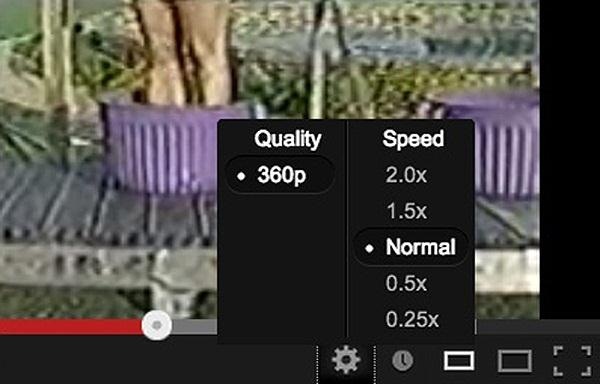
If that doesn't satisfy your needs, you can also sign up for YouTube's HTML 5 Video Player, which allows you to slow down or speed up the video from the settings gear on the page.
Unfortunately, the settings under the gear icon won't help you get through those annoying ads any faster. It only works on videos that aren't monetized because the ones with ads still use Flash.

2. Link to a Specific Playback Point

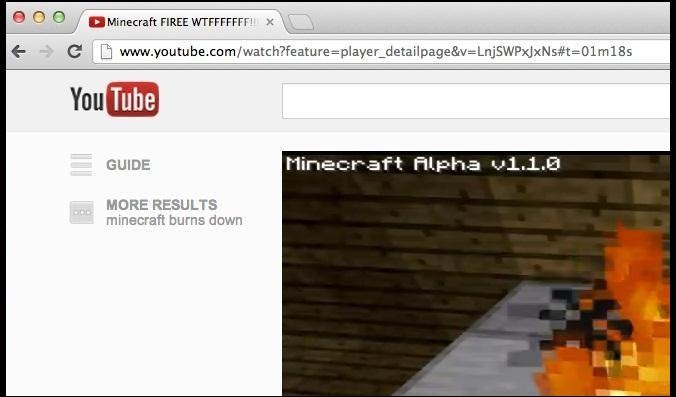
Sometimes, when clicking on a link to a YouTube video, you're fast-forwarded to a specific point in the video. This is usually the case when the person who linked to the video intended for the viewer to watch that clip, without having to watch the rest of the video. If you want to do the same, here's how:
Add #t= to the end of the video URL, followed by the minute you want (with an m) and then the second (with an s). An example would be #t=01m18s or#t=78s for 1:18 in the video.
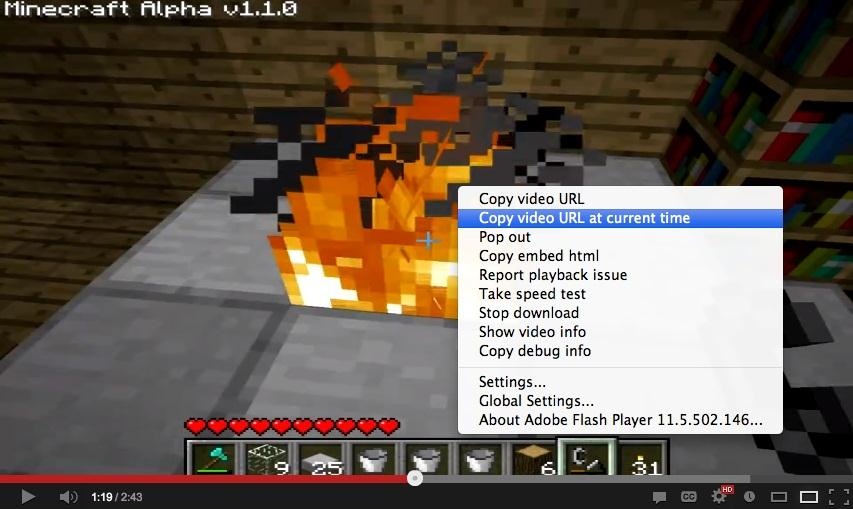
You can also just pause the video at the desired point, right-click on the video, and choose copy video URL at current time.
This also works for embedding videos, so if you're posting it on your own blog or website, you can also cut out an extra step by embedding the video rather than linking to it.

3. Load Videos Faster with Feather

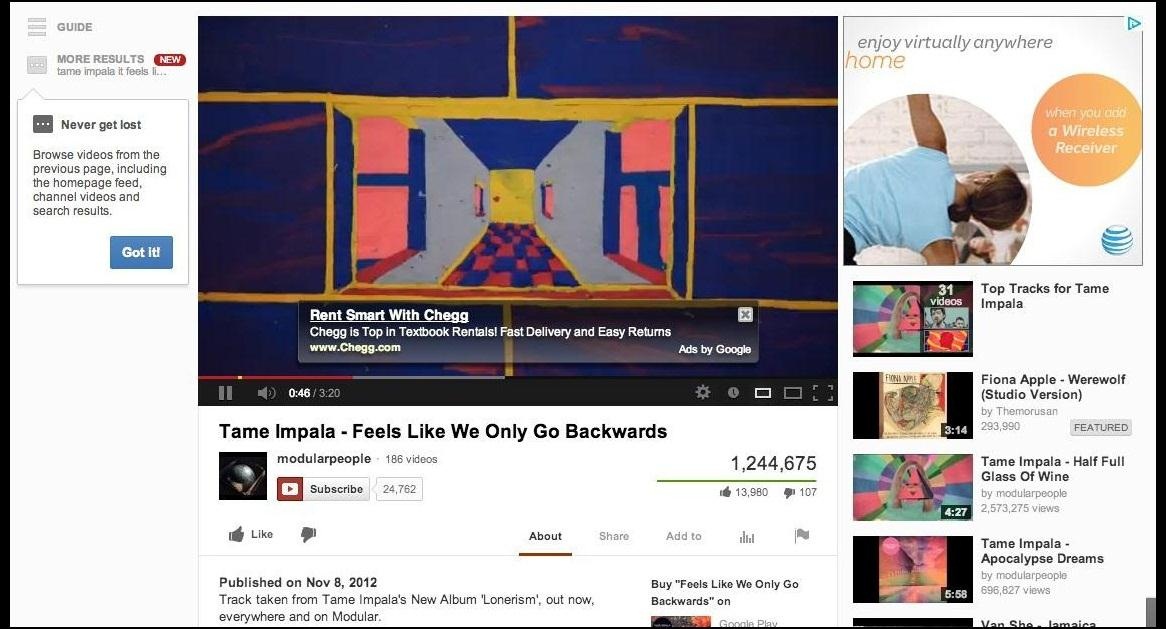
Do your videos not load as fast as you'd like them to? Feather (currently in beta) might be the answer you're looking for. This feature trims the fat off of each page by taking away things like expandable share boxes, collapsible comments, and other settings.
Before Feather:
After Feather:
Give Feather a try and see if it makes a difference in your video load speeds. Not only that, but it may be a favorable layout for those who enjoy a more simplistic feel.

4. Make Automatic Playlists with Disco

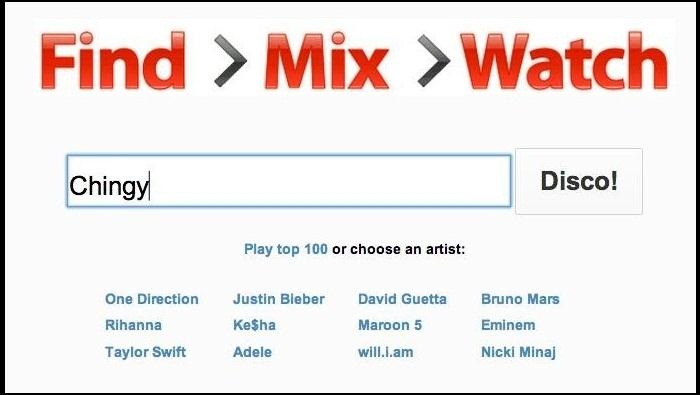
Want to make an automatic YouTube video playlist of your favorite artist? Well, look no further than YouTube Disco.
This feature allows you to type in your favorite artist's name and YouTube will create a playlist of all their hits. I did one for my favorite rapper, Chingy, and it created an awesome playlist for all my friends and family to enjoy.
Chingy was da best.

5. Use Only Your Keyboard

With Lean Back, you can turn YouTube into a keyboard-only interactive website. The site is overhauled with a unique and beautifully designed user interface that allows you to search for videos, while only using the arrow and enter keys.
You can also just browse the site, if you don't want to search for anything specific. The sidebar is filled with icons corresponding to the most popular categories: sports, gaming, music and much more.

6. Watch What You're Feeling

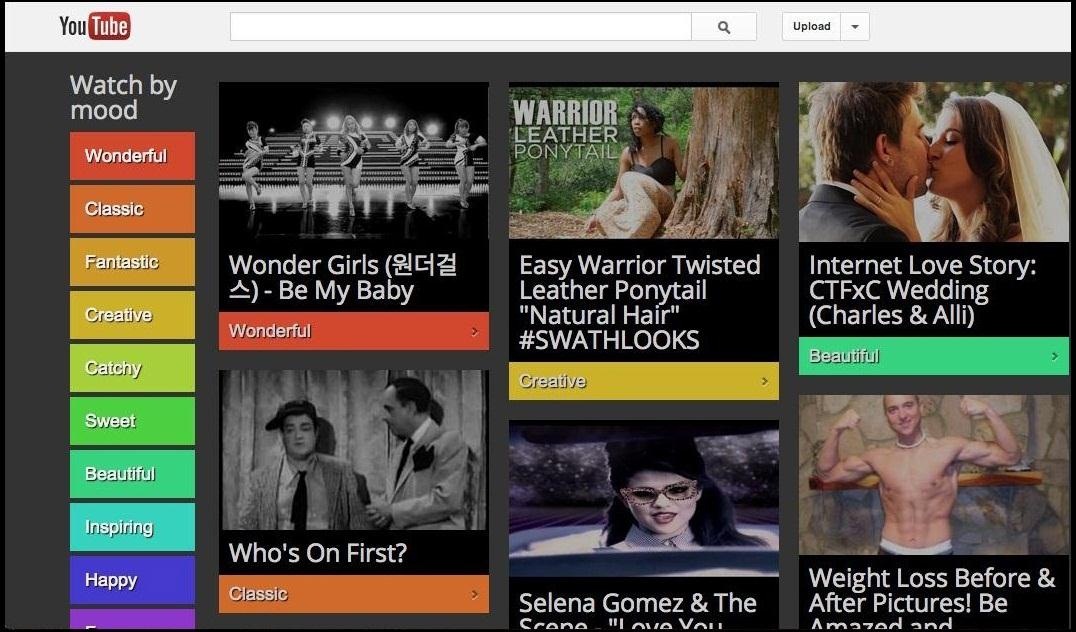
If you're feeling emotional, try out YouTube's hidden feature calledMoodwall. Through the use of keywords and specific phrases in the comments of each video, YouTube specialists have devised an equation that separates all videos into specific moods.
Whether you're feeling creative, gross, funny, amazing, sad, deep or intense, the experimental page has a category to appeal to your current state of mind.
You can go through all the different categories on the left side of the screen, and if you want a fresh take, click twice on any one category and they will all change.

7. Play the Snake Game

Probably one of the best known secrets of YouTube is the Snake_game. It's even in the Wikipedia entry.
I remember playing that game on my old Nokia for hours on end. To play it on YouTube, all you need to do is hold down the left or right arrow key for a few seconds while the video is paused, then press the up arrow to start the game.
This is especially useful if the video you're watching takes a long time to load, whether it's because it's in 1080p or your internet is acting up again.

8. Edit Your Videos Right in YouTube

If you edit your videos before uploading them to YouTube, you might want to try out YouTube's Video Editor. With this free tool, you can:
  • Combine multiple videos you’ve uploaded to create a new, longer video.
  • Trim your uploads to custom lengths.
  • Add a soundtrack from YouTube's library of approved tracks.
  • Customize clips with special tools and filter effects.
If you just need the basics, this is a great way to cut out an extra step rather than using another program. You might even be able to make it into a decent video editor.

9. Compare Your Load Speeds to the Rest of the World

Ever wondered how fast your YouTube video playback is compared to the rest of the the world? With My Speed, you can check your average speed (in Mbps) and compare it to neighboring cities, your state, the US and the entire world.
While it may not be a mind blowing feature, it is very interesting and provides some incredible statistics. You can also scroll down and watch theirTest Video, which shows you all of the connection and speed information in real-time.

10. Customize the Ads You See

The peskiest part of YouTube are the ads. They pop up everywhere and always make you wait up to 30 seconds, just to watch a 5 second video of someone falling down on their ass. While you can't get rid of the ads, you can surely customize them.
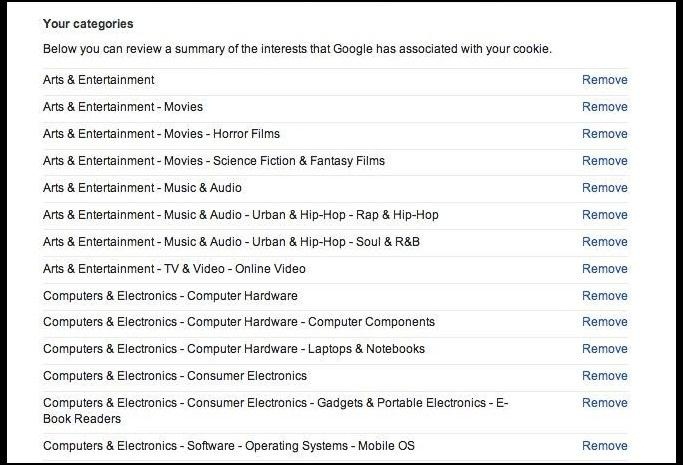
All you need to do is head over to Ad Preferences and remove whichever ads you don't want to appear. Not sure what advantages this has, but at least I don't have to watch those damn ads about how to treat erectile dysfunction anymore.

Say-Thanks

Twitter Delicious Facebook Digg Stumbleupon Favorites More

 
Design by Free WordPress Themes | Bloggerized by Lasantha - Premium Blogger Themes | Bluehost Coupons