


 08:42
 Unknown

YouTube is the third most popular website in the world, after Google and Facebook. Millions of subscriptions happen each day on YouTube, with over 800 million unique users visiting each month. In that timespan, roughly 4 billion hours of video are watched, with 72 hours of video uploaded every single minute.
YouTube is localized in 43 countries and is available in 60 languages. In 2011 alone, YouTube had more than 1 trillion views—equivalent to 140 views for every single person on Earth.
Someone, somewhere in this picture is watching Gangnam Style right now.
As you can see, YouTube is an immense behemoth of an entity. Its videos are featured on the news daily, usually in the form of funny and shocking clips. Personally, I find myself watching YouTube videos almost every day, whether it's to listen to a song I can't find elsewhere, to learn how to do something, or just to watch skateboarders fall.
So, why is it that even though YouTube is unimaginably popular, I still find myself learning new things about the video sharing site all the time?
Here's a list of some of the best known secrets (or not) on YouTube.
1. Play Videos in Slow Motion
Did you know you can make any YouTube video play in slow motion? All you need to do is hold down the space bar and the video will start to play at a much slower speed.
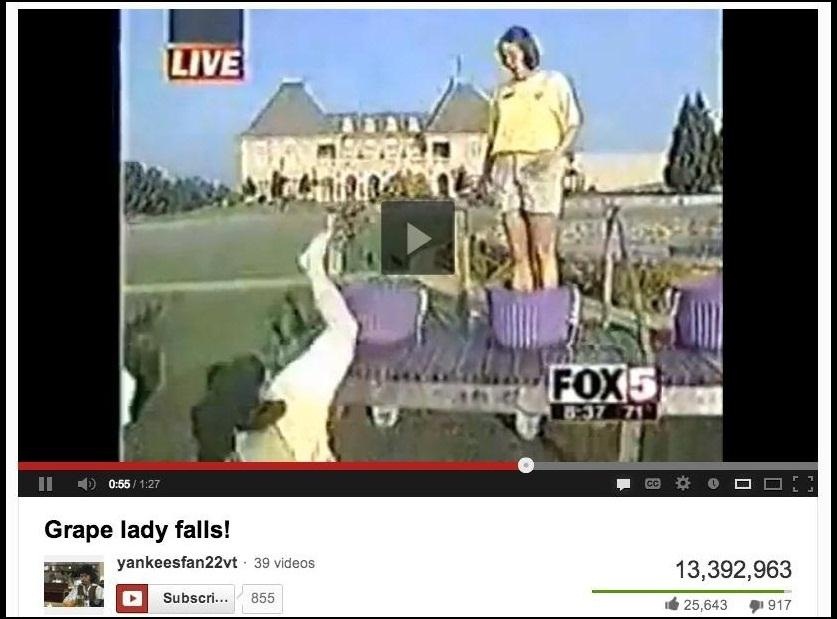
If that doesn't satisfy your needs, you can also sign up for YouTube's HTML 5 Video Player, which allows you to slow down or speed up the video from the settings gear on the page.
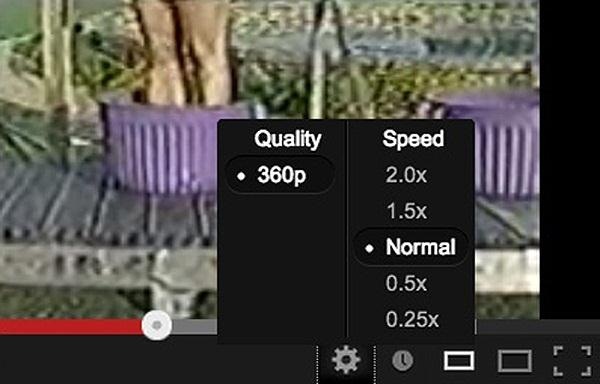
Unfortunately, the settings under the gear icon won't help you get through those annoying ads any faster. It only works on videos that aren't monetized because the ones with ads still use Flash.
2. Link to a Specific Playback Point
Sometimes, when clicking on a link to a YouTube video, you're fast-forwarded to a specific point in the video. This is usually the case when the person who linked to the video intended for the viewer to watch that clip, without having to watch the rest of the video. If you want to do the same, here's how:
Add #t= to the end of the video URL, followed by the minute you want (with an m) and then the second (with an s). An example would be #t=01m18s or#t=78s for 1:18 in the video.
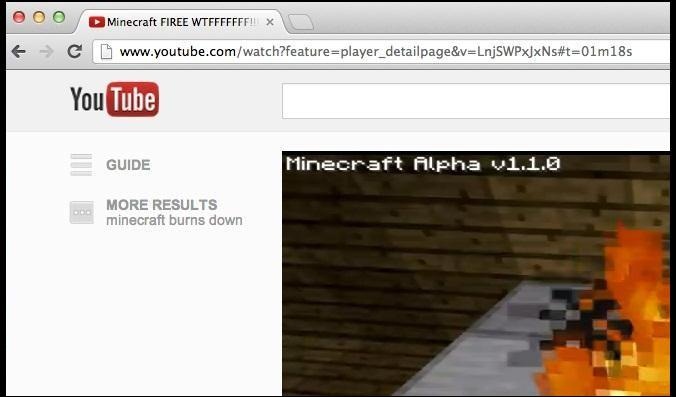
You can also just pause the video at the desired point, right-click on the video, and choose copy video URL at current time.
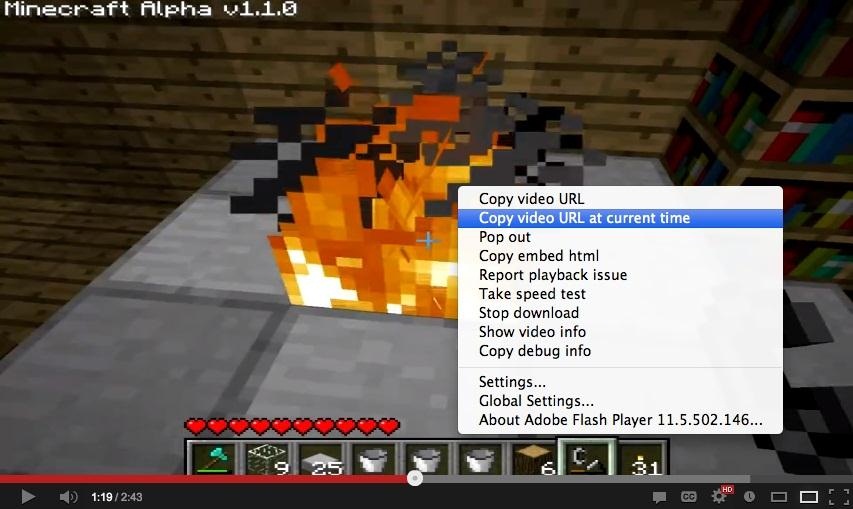
This also works for embedding videos, so if you're posting it on your own blog or website, you can also cut out an extra step by embedding the video rather than linking to it.
3. Load Videos Faster with Feather
Do your videos not load as fast as you'd like them to? Feather (currently in beta) might be the answer you're looking for. This feature trims the fat off of each page by taking away things like expandable share boxes, collapsible comments, and other settings.
Before Feather:
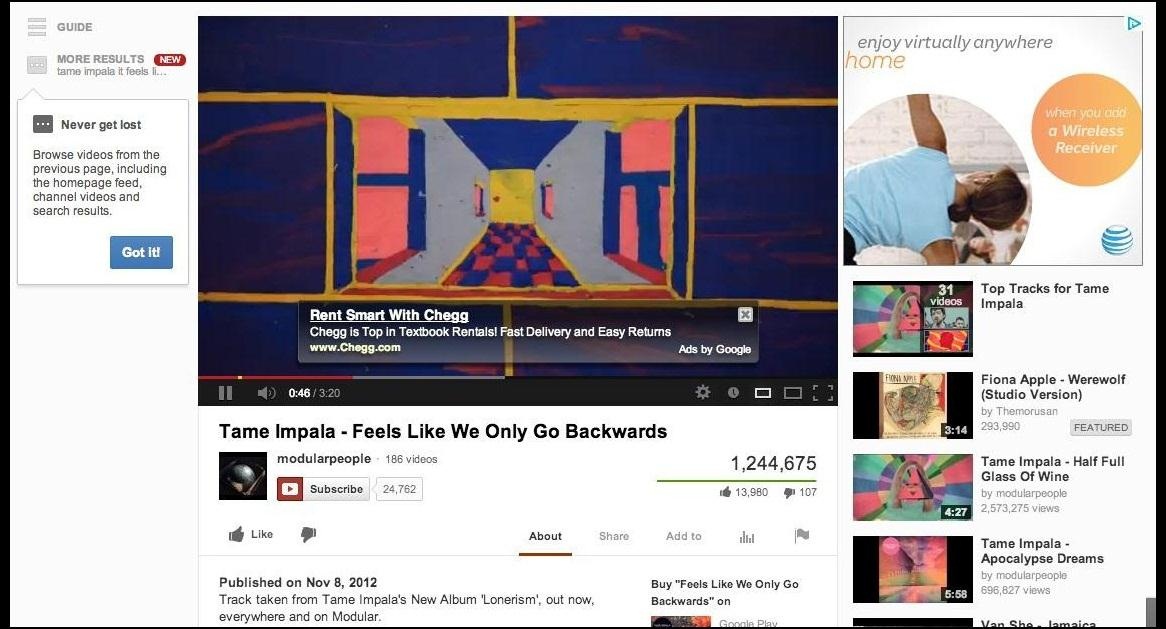
After Feather:

Give Feather a try and see if it makes a difference in your video load speeds. Not only that, but it may be a favorable layout for those who enjoy a more simplistic feel.
4. Make Automatic Playlists with Disco
Want to make an automatic YouTube video playlist of your favorite artist? Well, look no further than YouTube Disco.
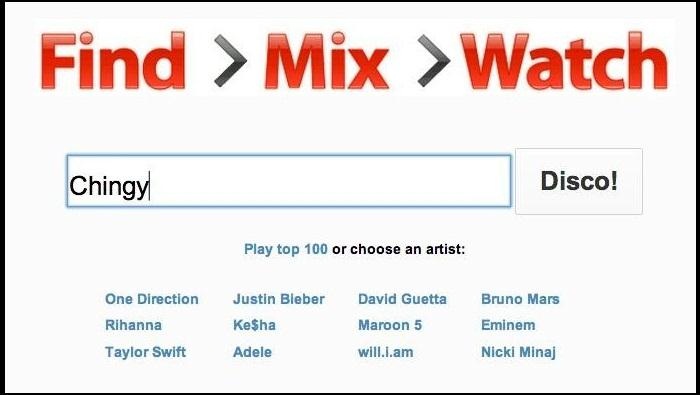
This feature allows you to type in your favorite artist's name and YouTube will create a playlist of all their hits. I did one for my favorite rapper, Chingy, and it created an awesome playlist for all my friends and family to enjoy.

Chingy was da best.
5. Use Only Your Keyboard
With Lean Back, you can turn YouTube into a keyboard-only interactive website. The site is overhauled with a unique and beautifully designed user interface that allows you to search for videos, while only using the arrow and enter keys.

You can also just browse the site, if you don't want to search for anything specific. The sidebar is filled with icons corresponding to the most popular categories: sports, gaming, music and much more.

6. Watch What You're Feeling
If you're feeling emotional, try out YouTube's hidden feature calledMoodwall. Through the use of keywords and specific phrases in the comments of each video, YouTube specialists have devised an equation that separates all videos into specific moods.
Whether you're feeling creative, gross, funny, amazing, sad, deep or intense, the experimental page has a category to appeal to your current state of mind.
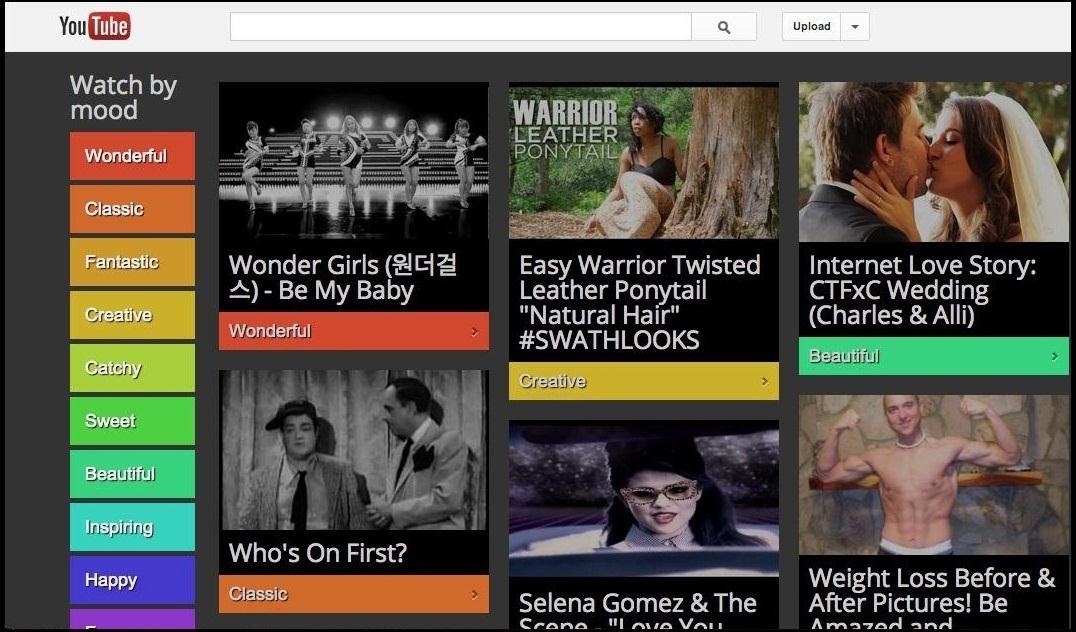
You can go through all the different categories on the left side of the screen, and if you want a fresh take, click twice on any one category and they will all change.
7. Play the Snake Game
Probably one of the best known secrets of YouTube is the Snake_game. It's even in the Wikipedia entry.
I remember playing that game on my old Nokia for hours on end. To play it on YouTube, all you need to do is hold down the left or right arrow key for a few seconds while the video is paused, then press the up arrow to start the game.
This is especially useful if the video you're watching takes a long time to load, whether it's because it's in 1080p or your internet is acting up again.
8. Edit Your Videos Right in YouTube
If you edit your videos before uploading them to YouTube, you might want to try out YouTube's Video Editor. With this free tool, you can:
- Combine multiple videos you’ve uploaded to create a new, longer video.
- Trim your uploads to custom lengths.
- Add a soundtrack from YouTube's library of approved tracks.
- Customize clips with special tools and filter effects.

If you just need the basics, this is a great way to cut out an extra step rather than using another program. You might even be able to make it into a decent video editor.
9. Compare Your Load Speeds to the Rest of the World
Ever wondered how fast your YouTube video playback is compared to the rest of the the world? With My Speed, you can check your average speed (in Mbps) and compare it to neighboring cities, your state, the US and the entire world.

While it may not be a mind blowing feature, it is very interesting and provides some incredible statistics. You can also scroll down and watch theirTest Video, which shows you all of the connection and speed information in real-time.
10. Customize the Ads You See
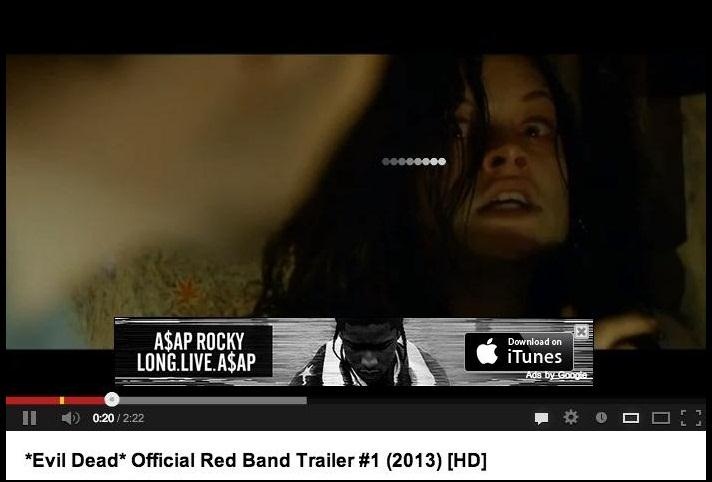
The peskiest part of YouTube are the ads. They pop up everywhere and always make you wait up to 30 seconds, just to watch a 5 second video of someone falling down on their ass. While you can't get rid of the ads, you can surely customize them.
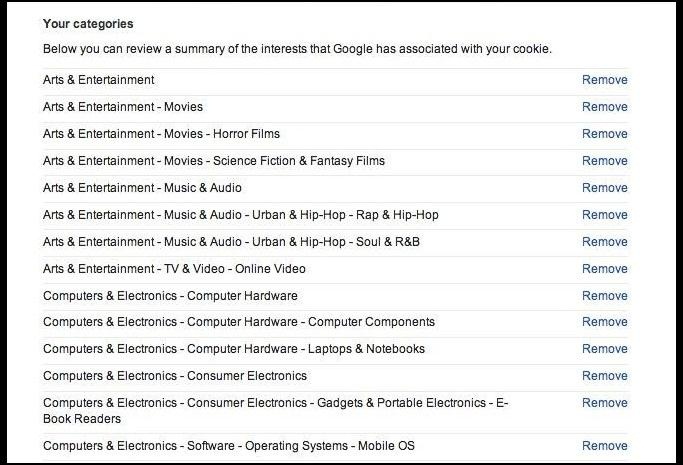
All you need to do is head over to Ad Preferences and remove whichever ads you don't want to appear. Not sure what advantages this has, but at least I don't have to watch those damn ads about how to treat erectile dysfunction anymore.


