Thursday, 5 December 2013

Control Mouse Cursor using Keyboard


Use Mouse Keys to move the Mouse pointer

With Mouse Keys, you can use the Numeric Keypad on your Keyboard - instead of the mouse - to move the pointer.


To Turn ON Mouse Keys in Window XP

1. Open Control Panel, Click Accessibility Options, Click the Mouse tab, and then select the Use MouseKeys check box.


To Turn ON Mouse Keys in Window 7

1. Open Ease of Access Center by clicking the Start button, clicking Control Panel, clicking Ease of Access,

and then clicking Ease of Access Center.

2. Click Make the mouse easier to use.

3. Under Control the mouse with the keyboard, select the Turn ON Mouse Keys check box.


Moving the pointer using Mouse Keys

After you Turn ON Mouse Keys, you can use the Numeric keypad to move the mouse.


Note :- Press NUM LOCK to use the Numeric Keypad.


To move the Mouse Cursor Press
Left 4
Right 6
Up 8
Down 2
Up and to the Left 7
Up and to the Right 9
Down and to the Left 1
Down and to the Right 3


Selecting a Mouse Button

Before you use Mouse Keys to click items on your screen, you must first select which mouse button you want to be the active button: the Left button, the Right Button, or both.

To Press
Select the Left mouse button The forward slash (/)
Select both buttons The asterisk (*)
Select the Right mouse button The minus sign (-)


Clicking items using Mouse Keys

After you choose a button, you can click items on your screen.

To Do this
Click an Item With the Left button selected as your active button, point to the item, and then Press 5
Right-Click an Item With the Right button selected as your active button, point to the item, and then Press 5
Double-Click an Item With the left button selected as your active button, point to the item, and Press the plus sign (+)


Dragging items using Mouse Keys

You can use the numeric keypad to press and hold the active mouse button and to release it. This is helpful if you want to drag an item.

To Do this
Drag an Item Point to the item, and then Press 0
Drop the Item Point to the location where you want to move the item, and then Press the decimal point (.)


Window 8 Snap

 
Note :- You can also turn on Mouse Keys by pressing Left Alt+Left Shift+Num Lock.
Quick Sort

Algorithm of Quick Sort

 
QuickSort(a,beg,end)            // a is Array
{
if(beg<end)
{
p=Partition(a,beg,end);         //Calling Procedure to Find Pivot

QuickSort(a,beg,p-1);           //QuickSort Calls Itself
QuickSort(a,p+1,end);           //(Divides the List into two Sub Lists)      
}
}


Procedure to Find Pivot :-

Partition(a,beg,end)
{
p=beg, pivot=a[beg];

for loc=beg+1 to end;
{
if(pivot>a[loc])
{
a[p]=a[loc];
a[loc]=a[p+1];
a[p+1]=pivot;

p=p+1;
}
}
return p;
}


Program in C++ --- Quick Sort


#include<iostream>
#include<conio.h> 
using namespace std;
 int Partition(int a[], int beg, int end)          //Function to Find Pivot Point
{
int p=beg, pivot=a[beg], loc;

for(loc=beg+1;loc<=end;loc++)
{
if(pivot>a[loc])
{
a[p]=a[loc];
a[loc]=a[p+1];
a[p+1]=pivot;

p=p+1;
}
}
return p;
}


void QuickSort(int a[], int beg, int end)
{
if(beg<end)
{
int p=Partition(a,beg,end);                       //Calling Procedure to Find Pivot

QuickSort(a,beg,p-1);                             //Calls Itself (Recursion)
QuickSort(a,p+1,end);                 //Calls Itself (Recursion)
}
}


void main()
{
int a[100],i,n,beg,end;

cout<<"\n------- QUICK SORT -------\n\n";
cout<<"Enter the No. of Elements : ";
cin>>n;

for(i=1;i<=n;i++)
{
cin>>a[i];
}
beg=1;
end=n;

QuickSort(a,beg,end);                           //Calling of QuickSort Function

cout<<"\nAfter Sorting : \n";
for(i=1;i<=n;i++)
{
cout<<a[i]<<endl;
}
getch();
}


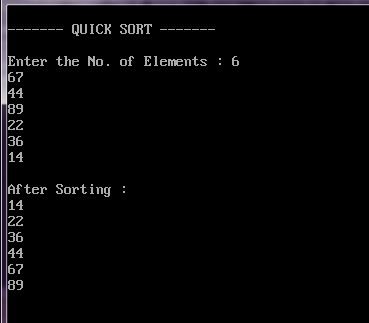
Output :-

Quick Sort

Wednesday, 4 December 2013

Top 10 unknown Google tricks

Below is a list of our top ten Google tricks many people who use Google don't know about.

Definitions

Pull up the definition of the word by typing define followed by the word you want the definition for. For example, typing: define bravura would display the definition of that word.

Local search

Visit Google Local enter the area you want to search and the keyword of the place you want to find. For example, typing: restaurant at the above link would display local restaurants.
Phone number lookup

Enter a full phone number with area code to display the name and address associated with that phone number.

Find weather and movies
Type "weather" or "movies" followed by a zip code or city and state to display current weather conditions or movie theaters in your area. For example, typing weather 84101 gives you the current weather conditions for Salt Lake City, UT and the next four days. Typing movies 84101 would give you a link for show times for movies in that area.

Track airline flight and packages
Enter the airline and flight number to display the status of an airline flight and it's arrival time. For example, type: delta 123 to display this flight information if available.

Google can also give a direct link to package tracking information if you enter a UPS, FedEx or USPS tracking number.

Translate

Translate text, a full web page, or search by using the Google Language Tools.

Pages linked to you

See what other web pages are linking to your website or blog by typing link: followed by your URL. For example, typing link:http://www.asimkhan1.blogspot.com displays all pages linking to Our Blog.

Find PDF results only

Add fileType: to your search to display results that only match a certain file type. For example, if you wanted to display PDF results only type: "dell xps" fileType:pdf -- this is a great way to find online manuals.

Calculator

Use the Google Search engine as a calculator by typing a math problem in the search. For example, typing: 100 + 200 would 
display results as 300.

Stocks

Quickly get to a stock quote price, chart, and related links by typing the stock symbol in Google. For example, typing: msft will display the stock information for Microsoft.

Top 10 Twitter tips and tricks


TwitterBelow is a listing of our top 10 favorite Twitter tips and tricks. These tips will help make your Twitter experience more enjoyable and can help increase your followers.
Customize
  • Change your profile picture. Use a picture of yourself to make it seem more personalized if this is your personal Twitter account.
  • Utilize as much of the 160-character limit Twitter BIO space allows. Include keywords your followers or potential followers may be searching for.
  • Create your own background image. However, do not make the image too much like an ad or sales pitch. The background image must be less than 800k and we recommend a size of 1600x1200 for a large image or smaller if you plan on tiling the image or just having it on the left-hand side. Finally, keep in mind that smaller resolutions and monitor sizes will hide much of the background.
Third-party tools
Take advantage of the hundreds of different third-party online tools and services that enhance your Twitter experience. Below are a few of our favorites.
  • TwitPic - Take advantage of TwitPic to post pictures on your tweets. If you want to post pictures while away from the computer, use the Twitterific app.
  • Qwitter - Great service that sends an e-mail any time someone unsubscribes from your Twitter profile and mentions a possible Twitter post you made that may have caused them to leave.
  • Manageflitter - Fantastic site for managing your followers and getting an easy to read overview of people not following you back, quiet users, and inactive users.
  • WeFollow - Great website that allows you to add yourself to a listing of Twitter users by tags you find interesting.
  • SocialOomph - Another great service with a collection of free Twitter tools including the ability to schedule when a tweets gets posted.
  • Tweetbeat - An excellent site that takes the trending topics on Twitter and gives you a clearer explanation of present and past trending topics.
  • TwitterMeme - Another great location to find the hottest links on Twitter.
  • Twitter Grader - Great service that grades any Twitter account and gives you additional details and ranking information.
  • Twitter Fan Wiki Apps - Finally, this wiki has a listing of several hundred different Twitter applications and tools for users wanting more.
Use Twitter search
Take full advantage of the Twitter search tool. Below are just a few tips that can help improve your search capabilities on Twitter.
  • Search for your website or blog URL and see if others are mentioning your page.
  • Search for anything near you by adding near:"city state". For example, typing near:"Salt lake city Utah" club would return current tweets that have happened in Salt Lake City, Utah with the keyword club in them.
  • Find people who you may enjoy following by searching for keywords that interested you.
  • If you do not want tweets with links add ? -filter:links at the end of your search query.
  • Need more options, use the Advanced Twitter search.
  • Any time you get excellent results click the "Save this search" button to save that search. These searches can then be found under "Saved Searches" on the right-hand part of your profile on the old Twitter interface or under the "Searches" tab next to your timeline on the new Twitter interface.
Followers
  • Engage followers.
  • Do not follow too many people. No one is going to follow someone who is following thousands of people but only has 10 followers.
  • Retweet interesting posts.
  • Retweet and participate in conversations with people with a lot of followers.
  • Realize it is impossible for anyone to read every tweet.
  • When first joining do not follow hundreds of people, doing this may mark you as a bot.
Create useful and interesting tweets
  • Try making all your tweets informative, useful, or funny.
  • Do not post mundane posts, e.g. eating a bowl of cereal.
  • Add hastags to your tweets. For example, if your tweet is about computers, consider adding #computer in the tweet.
  • Tweet frequently. No one is going to follow someone they do not know who has not tweeted in months. Try at the very least to tweet a few times a week or daily if you can manage.
  • Do not whine or complain. Everyone will unfollow anyone who constantly whines or complains.
  • Try making your valuable tweets during the times people will most likely see them.
  • Keep some space available in your tweet in case someone retweets your post.
  • Use special characters in your tweets.

Following a few of the masters of Twitter and Social Networking will give you an understanding of how to tweet better, posts to RT, and inspiration for tweets of your own. Below are the top ten Twitters we recommend following.
  • Twitaholic - A full listing of the top users on Twitter based on Followers. This is a terrific service to find and follow the top users and possibly incorporate some of the ideas they are doing on their account.
Tip: Many of the first few hundred people are celebrities on Twitaholic, if they do not interest you skip the first page.
Create and use lists
Twitter list iconTwitter lists are an excellent method of filtering filter through the people you follow. To create a list, click the Lists link and then Create a list. After creating a list visit the persons profile page you wish to add and click the list icon, as shown in the picture to the right. Our Computers and Tech list is an example of a public list we created.
Go Mobile
Apple iPhones, Blackberry phones, Android phones, Windows phone 7 phones, and most of the other smart phones have Twitter applications. Take full advantage of these applications. For users who do not have smart phones Twitter also has extensive support for SMS, which can send tweets over a text message.
Advertise
  • Mention your Twitter page as many places as you can, e.g. your business card, e-mail signatures, web page, blog, Facebook, etc.
  • Create a tweet button or at least your Twitter name on your pages, similar to the below examples.

Twitter Delicious Facebook Digg Stumbleupon Favorites More

 
Design by Free WordPress Themes | Bloggerized by Lasantha - Premium Blogger Themes | Bluehost Coupons